

Tycoon
“a pizzeria tycoon where you expand from a food truck to a skyscraper”
Describe your game and get the pieces of its shop screen in one style: the shop window, the buy button, the item slots, the currency bar and the close button, each cut out as a transparent PNG.
Credit packs from $4.99 · pay once, no subscription · credits never expire
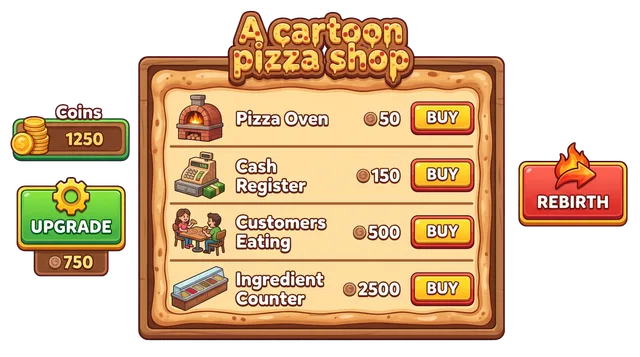
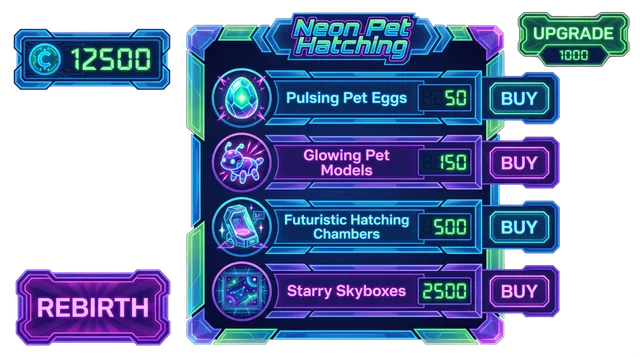
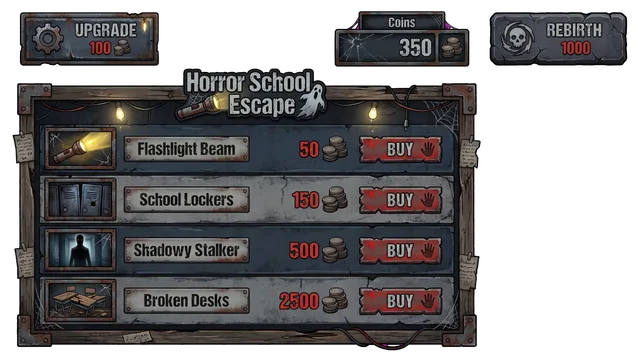
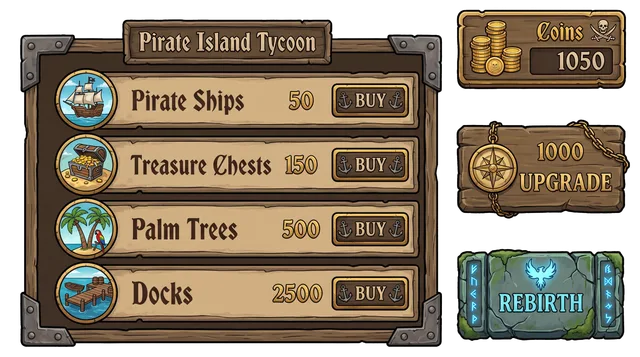
Each card below is a real run of the kit generator, made on 2026-10-19 for a different game. The shop pieces are the ones we picked out of each kit. The rest of every kit (the other buttons and bars) is on the full sheet; click a sheet to enlarge it.
“a pizzeria tycoon where you expand from a food truck to a skyscraper”
“a pet hatching simulator on candy islands”
“a harbour town roleplay with jobs, houses and boats”
Every shop in a Roblox game, whatever it sells, comes down to the same five jobs. Here they are in the kits above, cut out on a checkerboard so you can judge the edges.
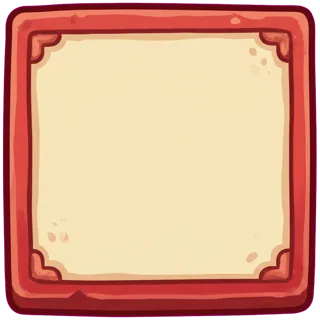
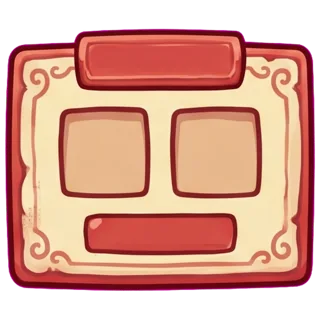
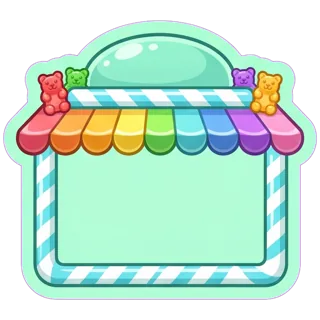


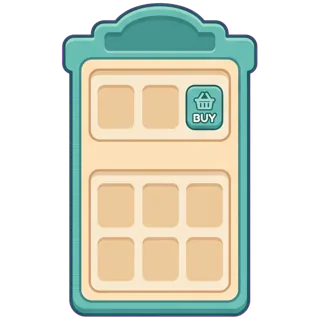
Our three kits happen to be three different shop layouts. Which one fits depends on how many items you sell and where the player is looking.
| Layout | Seen in | Good when | Watch out for |
|---|---|---|---|
| Window with a BUY button | The pizza kit | A few items, one choice at a time, big clear action | Needs a script to show the selected item |
| Stall or storefront frame | The candy kit | The shop should feel like a place; few, special items | The decorative top eats vertical space on a phone |
| Tall panel with an item grid | The harbour kit | Many items you scroll through | Small slots; keep each one large enough to tap |
The art is only the front. In Studio, put a ScreenGui in StarterGui with an OpenShop ImageButton and a ShopFrame ImageLabel that holds the window art. Inside the frame add a Close ImageButton, a ScrollingFrame for the items and a TextLabel on the currency bar. Then add one LocalScript to the ScreenGui:
local gui = script.Parent
local shop = gui:WaitForChild("ShopFrame")
local openButton = gui:WaitForChild("OpenShop")
local closeButton = shop:WaitForChild("Close")

shop.Visible = false

openButton.Activated:Connect(function()
	shop.Visible = true
end)

closeButton.Activated:Connect(function()
	shop.Visible = false
end)
Use Activated rather than a mouse event so the same code answers a click, a tap and a gamepad press. For the item list, put a UIGridLayout in the ScrollingFrame, set its AutomaticCanvasSize to Y, and clone one slot ImageButton per item from a template. Use the buy button to ask the server to charge, and never trust the client to grant the item.
Many players are on phones, so test the shop at phone size before you ship. These are the rules we follow, not Roblox requirements.
| Part | What to check |
|---|---|
| Close button | At least about 44 pixels square on a phone; add a transparent hit area if the art is smaller |
| Item slots | Three or four per row at most, so each slot stays tappable |
| Window | Size it in Scale with a UIAspectRatioConstraint, and leave a margin so it does not touch the screen edge |
| Text | Add it yourself in a TextLabel; do not rely on lettering drawn into the art |
A shop screen is a handful of images that do different jobs: a window frame, item slots or cards, a buy button, a currency counter, a close button, and a button on the main screen that opens it. A kit from spawnpop draws all of them together and cuts each one out as a transparent PNG.
No. You get the artwork only. Wiring the shop (what each item costs, what a purchase does, how Robux or in-game currency is taken) is game logic you write in Studio. The page shows the short script that opens and closes the window; the rest is yours.
In the three shop kits on this page the slicer cut 8, 8, 8 pieces. A kit is a single generation for 120 credits, so you pay once for the whole set and not per button.
Describe the colours you want in the first sentence and generate again, or tint a piece inside Studio with the ImageColor3 property. Tinting works best on pieces that are mostly one colour.
It follows the description you give. On the home page you can also add a screenshot of your game, and the kit then takes its colours and shapes from it. The result is a draft to review, not a guarantee.
The credits for that run return to your balance automatically. Credits never expire and there is no subscription.
The shop pieces come with a full GUI kit, which is 120 credits, about $0.60 to $1.20 depending on the pack you buy. A draft costs 10 credits. The pieces are the same files the Roblox GUI maker produces, so the Studio steps there apply here too. Prices for packs are on the pricing page.
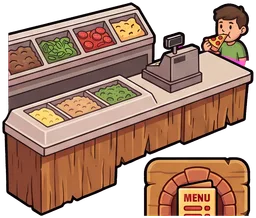
The four pictures at the top of this page are themed shop-screen previews from our own live test run on 2026-10-21, made through the same pipeline you use, on our own test account. Each is one picture of the whole screen in the game's own look, with a transparent background so it sits on any colour, and none has been retouched.
A preview is a picture to show and to mock up your screen with. It is not cut into pieces: the buttons, frames and counters you place in Studio come from the GUI kit, which is cut apart. The themed preview is an add-on of 80 credits to a kit.
A shop that looks like your game
Describe the game once and get the shop window, the buttons and the slots in one style.
Make my shop GUI